 QDStar
Manual
QDStar for the Icom IC-705 · Windows and Linux
What QDStar is
QDStar controls an Icom IC-705 in D-STAR Terminal Mode from a Windows or Linux computer:
- It talks to the radio over WiFi with the Icom network protocol: the control and CI-V streams, without audio. It replaces wfview for D-STAR work.
- It has its own gateway for Terminal Mode over USB, so you do not need DStarRepeater, ircDDBGateway or any other service. It links reflectors over DPlus (REF), DCS (DCS, XLX) and DExtra (XRF).
- It shows who is on the air, with name, location, distance and bearing, and keeps a history of every over.
- It collects the D-PRS positions and weather reports that arrive with the voice, and manages your own D-PRS beacon.
Installation
Download the file for your system from the download section or the releases page.
Windows 10/11 (x64)
- Installer (
…-windows-x64-setup.exe): it installs QDStar for your user, with no administrator rights needed. If QDStar is already installed, the installer offers to update, reinstall or uninstall it. Updating keeps your settings, history and reflectors. - Portable (
…-portable.zip): unzip it anywhere and runqdstar.exe.
Windows SmartScreen may warn you the first time, because the program is not signed. Choose More info → Run anyway.
Linux (x86-64 and ARM64)
- .deb (Debian, Ubuntu, Raspberry Pi OS):
sudo apt install ./qdstar_x.y.z_amd64.deb. QDStar then appears in the applications menu. - AppImage: make it executable (
chmod +x QDStar-*.AppImage) and run it. - tar.gz: unpack it and run
qdstar/qdstar.
For EXT mode your user needs access to the radio's USB serial ports:
sudo usermod -aG dialout $USER on Debian, Ubuntu and Raspberry Pi OS, or the uucp group on Arch. Log out and back in afterwards.
The ARM64 builds run on Raspberry Pi OS bookworm, Debian 12 or later and Ubuntu 22.04 or later.
Radio setup
Network (both modes)
- Connect the IC-705 to your WiFi network (SET › WLAN Set) and give it a fixed IP address, or reserve one in your router.
- In WLAN Set › Remote Settings, set Network Control to ON and create a Network User with a user name and password.
INT mode: internal gateway over WiFi
- DV GW › Gateway Select: Internal Gateway (WLAN).
- DV GW › Internal Gateway › Gateway Repeater (Server/IP/Domain): your G3 Terminal Mode server, for example
server1.dstar.es. - Terminal/AP Call Sign: your call sign with
Zin the 8th position (EA7KLX Z). - Turn Terminal Mode on (MENU › DV Gateway › Terminal Mode).
EXT mode: QDStar's gateway over USB
- Connect the radio's USB cable to the computer.
- DV GW › Gateway Select: External Gateway USB (B).
- Terminal/AP Call Sign: your call sign with
Bin the 8th position (EA7KLX B). - Turn Terminal Mode on.
First run
The first time, QDStar opens the settings. Enter the radio's IP or host name, the network user and the password you created on the radio, and press Save. QDStar connects and reads your call sign from the radio (MY call sign). You do not need to type it.
QDStar also imports the connection details from wfview if they are there. Only one QDStar runs at a time: opening it again brings the running window to the front.
The main window
The window is narrow and tall so that it fits next to other programs. Its width is fixed, and you can make it taller to see more history.
Status LEDs
| LED | Meaning |
|---|---|
| Icom | Network session with the IC-705. It is green when connected and blinks amber while connecting. |
| CI-V | The radio answers CI-V commands. |
| Internet | Internet access (the XLX directory answers). |
| USB | EXT only: the radio's USB cable is connected to the computer. |
| Gateway | EXT only: the gateway answers. |
| Reflector | The selected reflector is online. |
| Linked | Linked to the reflector. |
| RX / TX | Receiving or transmitting voice. |
Hover over any LED to see what it means.
The reflector screen
The black screen shows, from top to bottom:
- The reflector: name, description, whether it is online, the number of connected nodes and the link state.
- The station on the air, or the last one heard. It shows the call sign, the name and location from radioid.net, and the over's message and duration. When the station sends a D-PRS position, a box shows the distance and bearing from you.
- Last heard on the reflector: the latest stations, from the reflector's dashboard or from your history.
- The footer shows your call sign, your locator (when the radio knows your position), whether you send D-PRS, and the clock.
Mode, reflector and tabs
Below the screen are the INT · WiFi and EXT · USB/PC buttons, with a LED on the active one. A ⚠ sign appears when the radio does not match the chosen mode, for example when the radio is still in INT while you chose EXT. Hover over it to see what to check.
Next come the reflector list with its buttons, and the History, Log, D-PRS and Weather tabs.
INT and EXT modes
| INT · WiFi | EXT · USB/PC | |
|---|---|---|
| Gateway | The radio's own, through a G3 server | QDStar's, on your computer |
| Connection | WiFi only | WiFi for control, and USB for the voice data |
| Changing reflector | QDStar writes the TO (UR) over CI-V: choose it and press Change | Choose it and press Link. Unlink drops the link |
| Reflectors | The ones your G3 server offers | REF, DCS, XLX and XRF |
Change mode with the two buttons. Remember to change Gateway Select and the Terminal/AP Call Sign on the radio too (see Radio setup).
In EXT mode, QDStar remembers the reflector you were linked to and links it again the next time it starts.
Reflectors
The list comes with a selection of reflectors. Manage it in Reflectors › Manage…:
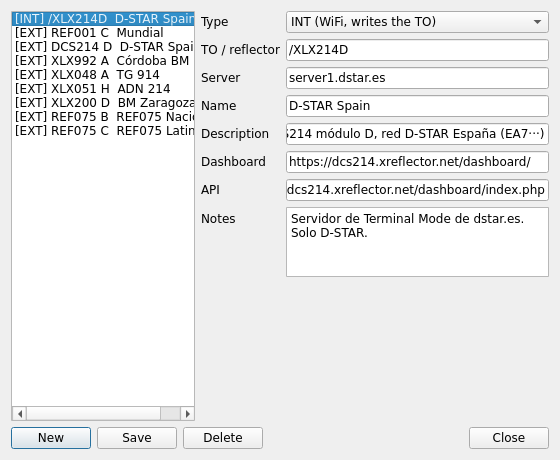
- Type: INT (the TO is written to the radio) or EXT (linked by QDStar's gateway).
- TO / reflector: in INT, the TO the radio sends (
/XLX214D). In EXT, the reflector and module (REF001 C,DCS214 D,XLX048 A,XRF988 D). - Server: INT only. It is the G3 server that leads to that TO. QDStar warns you when it does not match the one in the settings.
- Name and Description: the texts shown on the screen.
- Dashboard and API (optional): the reflector's web page and its xlxd JSON API, used for the node count and the last heard list.
Reflectors › Refresh status asks every reflector for its state straight away.
History and log
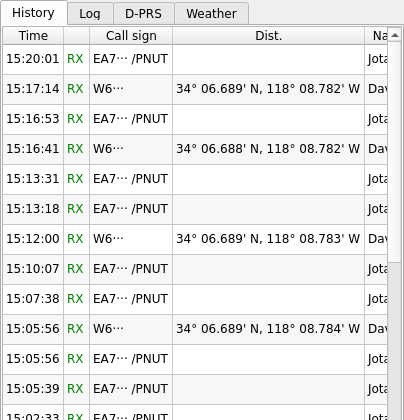
The History tab lists every over, received (RX) and transmitted (TX): time, call sign, distance, name, reflector, duration, message and location. A name or message that arrives after the over has ended is filled in on its row. History › Clear history… deletes it.
The Log tab shows what the application is doing: connections, links, errors. Radio › Log RX/TX CI-V frames adds the raw CI-V traffic, which is useful when reporting a problem.
D-PRS and weather
Received reports
Many stations send their position (D-PRS) with each over. QDStar reads it from the radio and shows the distance and bearing on the screen and in the history.
The D-PRS tab lists every report received: positions, objects, items and weather reports. That includes the ones relayed by other stations, such as the APRS gateways that repeat reports into D-STAR, and the Via column says which station carried each one.
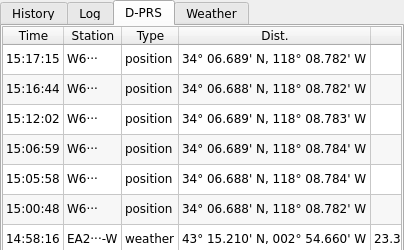
The Weather tab shows a card for each weather station heard, with its temperature, humidity, pressure, rain and wind.
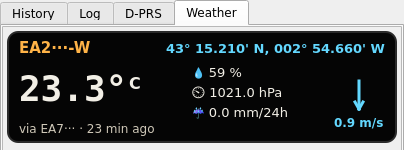
You can hide both tabs in the settings. The position of the station on the air is still shown either way.
Your own position
Radio › D-PRS position… reads and changes the radio's D-PRS settings over CI-V:
- Send my position with every over: turns the D-PRS beacon on or off (GPS TX Mode = D-PRS).
- Position source: the radio's internal GPS, or a manual position.
- Manual position: latitude and longitude in degrees (west negative), with an optional altitude. Use locator fills them in with the centre of a grid square, so you announce an area rather than your exact home.
- Symbol, SSID and Comment of your beacon.
QDStar uses your position, from the GPS or the manual one, to work out the distances. Nothing is written to the radio until you press Save.
Settings
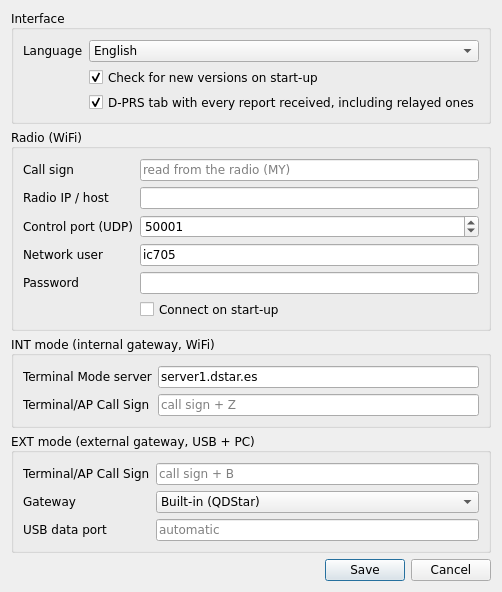
Open them from Radio › Settings…. Changes apply when you press Save. If you change the language, QDStar uses it from the next start.
Interface
| Field | What it does |
|---|---|
| Language | The language of the interface. System language follows your computer, and falls back to English when the system language has no translation. |
| Check for new versions on start-up | On start-up, and once a day while QDStar is open, it asks GitHub whether there is a new version (see Updates). Nothing else is sent. |
| D-PRS tab with every report received | Shows the D-PRS and Weather tabs. Turn it off if you only care about the position of the station on the air, which the screen shows either way. |
Radio (WiFi)
| Field | What it does |
|---|---|
| Call sign | Your call sign, without a suffix (EA7KLX). If you leave it empty, QDStar fills it in with the radio's MY call sign the first time it connects. The EXT gateway uses it to log in to reflectors, and to build the Terminal/AP call signs when those are left empty. |
| Radio IP / host | The radio's address on your network (SET › WLAN Set on the radio). A fixed address is best. |
| Control port (UDP) | The radio's Network Control port. It is 50001 unless you changed it in Remote Settings. The CI-V port is the next one (50002). |
| Network user / Password | The Network User created on the radio in Remote Settings. They are only used to log in to the radio. |
| Connect on start-up | Connects to the radio as soon as QDStar opens. Otherwise, connect from Radio › Connect. |
INT mode (internal gateway, WiFi)
| Field | What it does |
|---|---|
| Terminal Mode server | The same server as the radio's DV GW › Gateway Repeater (Server/IP/Domain), for example server1.dstar.es. The radio does not report it over CI-V, so you type it here. QDStar compares it with the server of each INT reflector and warns you when the chosen reflector needs a different one. |
| Terminal/AP Call Sign | The Terminal/AP call sign set on the radio for INT. Empty means call sign + Z (EA7KLX Z). QDStar uses it to tell whether the radio is really in INT (the ⚠ next to the mode buttons). |
EXT mode (external gateway, USB + PC)
| Field | What it does |
|---|---|
| Terminal/AP Call Sign | The Terminal/AP call sign set on the radio for EXT. Empty means call sign + B (EA7KLX B). The gateway only accepts the radio's traffic with this call sign. |
| Gateway | Built-in (QDStar) is the usual choice: QDStar itself talks to the radio over USB and links the reflectors. External ircDDBGateway is for those who already run DStarRepeater and ircDDBGateway (G4KLX) on the computer. QDStar then only drives them, and the extra fields below appear. |
| USB data port | The serial port the radio uses for Terminal Mode data (for example /dev/ttyACM1 or COM5). If you leave it empty, QDStar finds the IC-705's port by itself. Fill it in only if detection fails. |
These fields only appear with External ircDDBGateway:
| Field | What it does |
|---|---|
| ircDDBGateway host | The machine where ircDDBGateway runs (127.0.0.1 if it is this computer). |
| Remote control port / Remote password | ircDDBGateway's Remote settings, which QDStar uses to link and unlink reflectors. On Linux you can leave the password empty, and QDStar reads it from ~/.config/dstar/ircddbgateway. |
| Command when entering EXT | A command run when you switch to EXT, to start the G4KLX services (for example systemctl --user start dstar.target). |
| Command when leaving EXT | A command run when you leave EXT, to stop them. |
| Command when the USB is plugged in | A command run when the radio's USB appears. DStarRepeater cannot open a port that was missing when it started, so it has to be restarted (for example systemctl --user restart dstarrepeater). |
Updates
QDStar checks GitHub for a new version on start-up and once a day. When one is out, a ⬆ New x.y.z link appears next to the mode buttons, pointing at the right file for your system. You can also check by hand in Help › Check for updates…, and turn the automatic check off in the settings.
Troubleshooting
The Icom LED never turns green
- Check the IP, user and password, and that Network Control is ON on the radio.
- Only one program can hold the radio's network session. Close wfview, RS-BA1 or any other remote control software.
The radio refuses the connection after a crash
Close QDStar before switching the radio off, so it ends the network session cleanly. A session left open can keep the radio's network server busy until the radio is power cycled.
EXT mode: the USB LED is red
Check the cable, and on Linux check that your user is in the dialout (or uucp) group. If the data port is not found, choose it by hand in the settings.
A REF reflector does not link
DPlus needs your call sign registered in the D-STAR trust network. Try a DCS or XLX reflector to confirm everything else works.
⚠ next to the mode buttons
The radio's Terminal Mode does not match the mode chosen in QDStar. Hover over it to see what to change on the radio.
Contributing
- More reflectors: open a pull request adding entries to
qdstar/default_reflectors.json. - New languages: copy
qdstar/translations/es.poto your language's code, translate it and open a pull request. The README explains how. - Bugs and ideas: open an issue on GitHub.
QDStar is free software (GPL-3.0-or-later). The Icom network protocol is reimplemented from wfview. The Terminal Mode, DPlus, DCS and DExtra code is ported from G4KLX's DStarRepeater and ircDDBGateway.